New to Shopify? Free trial, then $1/month for your first 3 months. Start free trial →
 Where is your store?
Ryviu works with both – pick yours to continue.









In the fast-paced world of eCommerce, even small technical issues can cost you significant traffic, revenue, and customer trust. One issue that often goes unnoticed yet has a big impact is the dreaded 404 error. When a visitor lands on a page that doesn’t exist, it not only frustrates the user but also signals to search engines that your website isn’t well-maintained. This can harm your SEO rankings and reduce your store’s overall performance.
On Shopify, 404 errors commonly arise from deleted products, changed URLs, or app integrations that modify links. The good news is that with a structured cleanup strategy, you can recover lost traffic, improve user experience, and boost your SEO performance. Let’s explore how to tackle these issues effectively.

A 404 error occurs when a webpage cannot be found on your server. In the context of Shopify stores, 404 errors typically happen because:
Understanding why 404 errors occur is the first step toward fixing them. These errors matter for several key reasons:
By taking the time to identify and fix 404 errors, you ensure that users can find the products or information they are seeking, which in turn strengthens your SEO and conversion potential.
Before you can fix 404 errors, it is crucial to locate them accurately. There are multiple tools and approaches to identifying broken links and missing pages:
Once you have identified the 404 errors, it’s important to prioritize them based on traffic and potential SEO value. Critical pages, like best-selling products or high-traffic collections, should be addressed first, while less important pages can be handled gradually.
Recovering lost traffic from 404 errors involves a combination of strategic redirects, internal link updates, content restoration, and ongoing monitoring. By approaching the cleanup methodically, you can recover both traffic and trust.
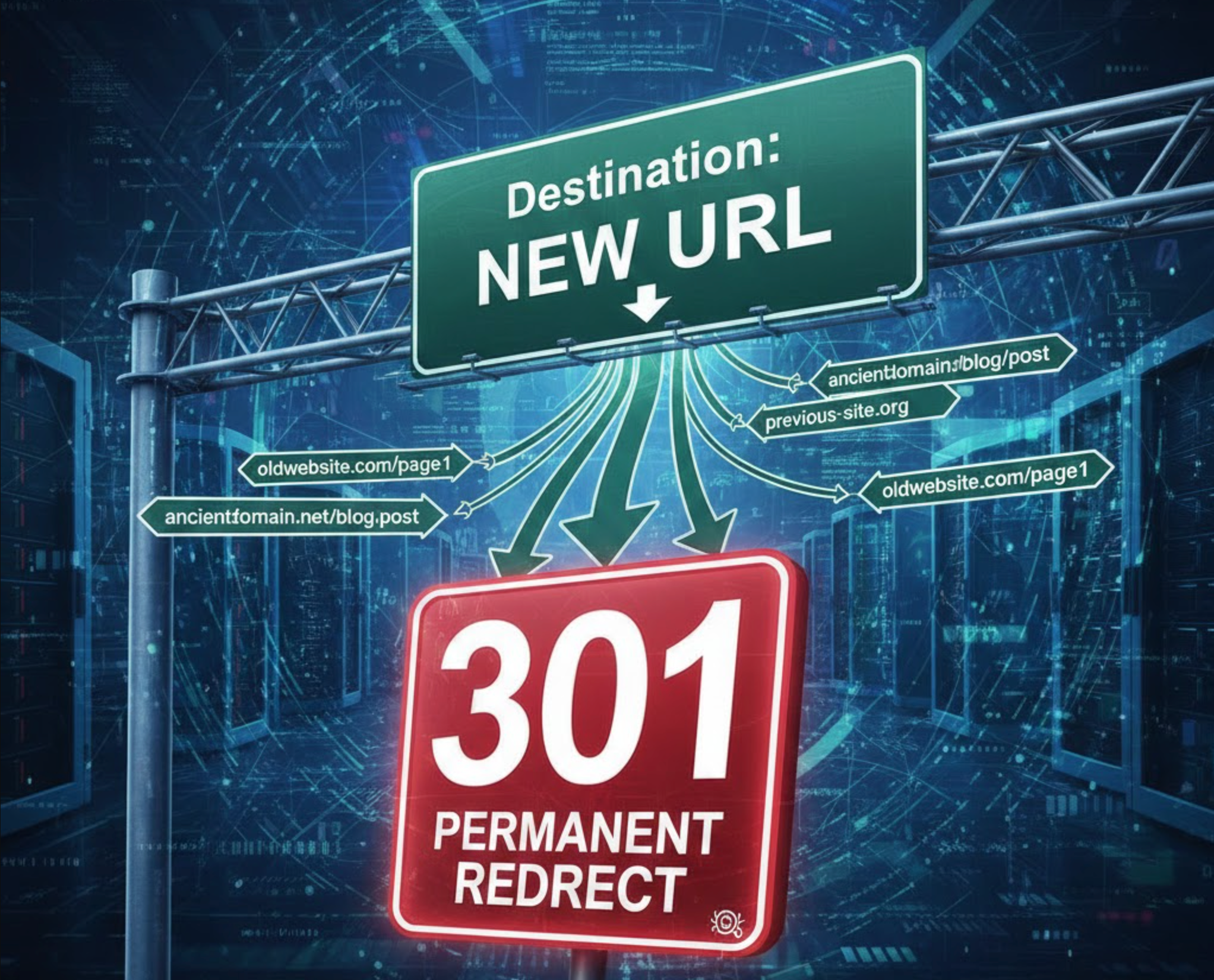
One of the most effective ways to fix 404 errors is by using 301 redirects, which permanently send users and search engines from the broken URL to the correct destination. This method preserves most of the original page’s SEO value while ensuring a seamless user experience.
To implement 301 redirects on Shopify:
It is highly recommended to prioritize redirects for high-traffic pages first, as this will recover the most lost traffic quickly. Redirects should also be reviewed periodically to ensure they remain functional as your store evolves.
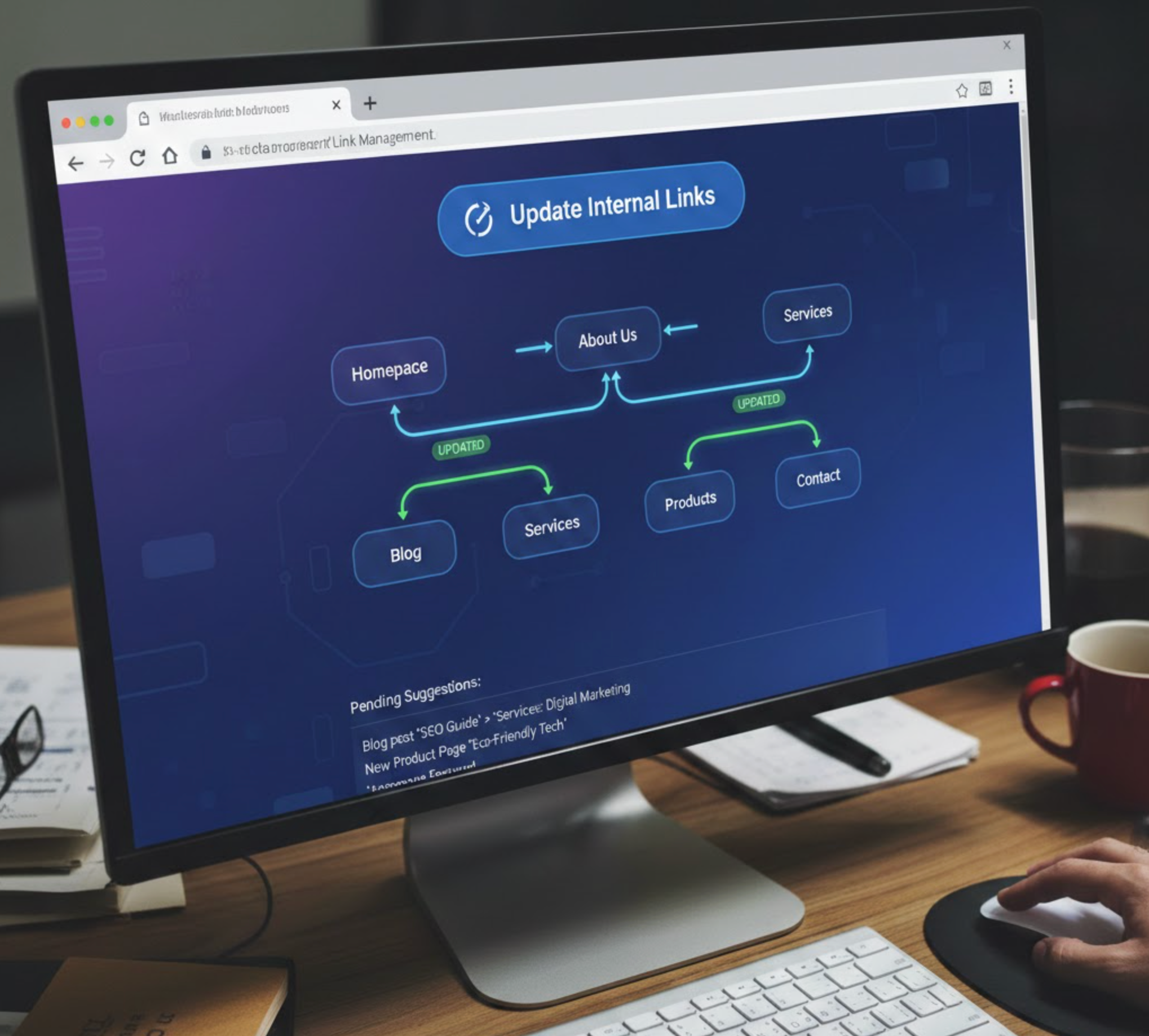
Broken internal links are another common source of 404 errors. Updating these links not only prevents user frustration but also strengthens your internal linking structure, which is a critical component of SEO checklist.
Here’s how to update internal links efficiently:
By continuously auditing and updating internal links, you ensure that visitors can navigate your store smoothly and that search engines can index your content properly. This step is vital for maintaining both traffic and user satisfaction.
Sometimes, pages are deleted but previously had valuable traffic, backlinks, or search engine rankings. In these cases, it’s often better to restore the content rather than letting the URL vanish completely.
This approach not only recaptures lost search traffic but also protects the authority and ranking signals of pages that were already indexed by search engines.
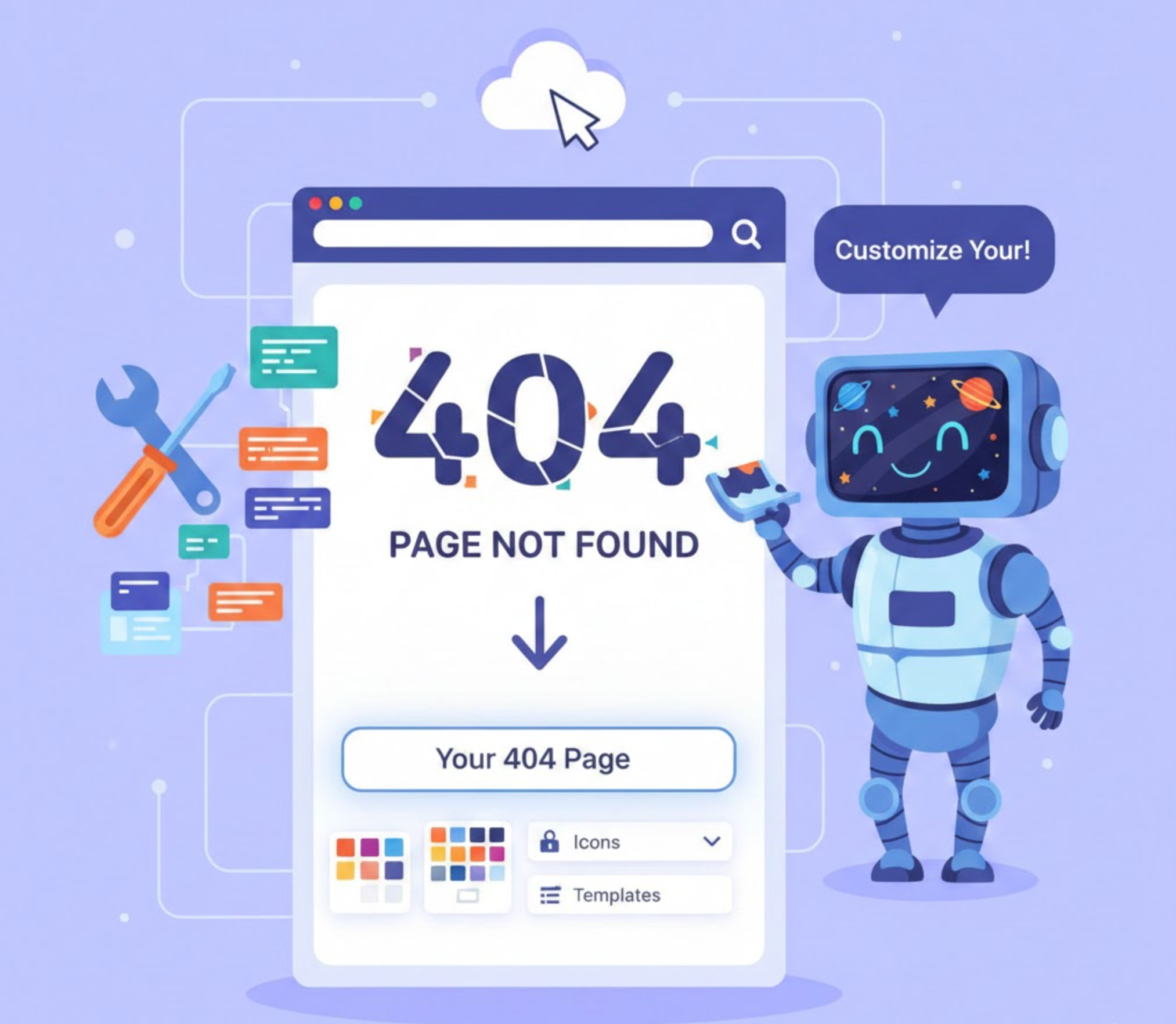
Even with the most thorough cleanup, some 404 errors are inevitable due to user typos or outdated external links. A well-designed 404 page can turn potential lost visitors into customers and reduce bounce rates.
By transforming your 404 page into a helpful tool rather than a dead-end, you create opportunities to retain visitors who might otherwise leave your store.

404 cleanup is not a one-time task, but it requires continuous monitoring and maintenance. New errors can appear anytime you add or remove products, change URLs, or update blog content.
Regular monitoring ensures that your Shopify store remains error-free, preserves SEO rankings, and provides a seamless experience for all visitors.
Shopify 404 errors might seem minor, but they can have a significant impact on traffic, conversions, and SEO rankings. By identifying broken pages, implementing 301 redirects, updating internal links, restoring valuable content, and optimizing your 404 page, you can recover lost traffic, enhance user experience, and maintain your store’s SEO authority.
A proactive approach to 404 cleanup is not just about fixing errors, it’s about creating a smoother, more trustworthy shopping experience that keeps visitors engaged and converts them into loyal customers. By committing to regular audits and ongoing maintenance, every visitor who lands on your site has the best chance of finding what they want, making your Shopify store more resilient and successful over the long term.