New to Shopify? Free trial, then $1/month for your first 3 months. Start free trial →
 Where is your store?
Ryviu works with both – pick yours to continue.









Server response time is one of the most overlooked factors affecting WooCommerce performance. Many store owners focus solely on front-end issues like image sizes or minification, but the truth is that your site can only be as fast as your server allows. If your hosting takes too long to respond, every other speed optimization will still feel sluggish. Google recommends keeping TTFB (Time to First Byte) under 200ms, and anything higher can directly impact your SEO, conversions, and user experience.
In this expanded guide, you’ll learn in detail what server response time really means, how to measure it accurately, and most importantly, the most practical, technical, and effective ways to bring it down. The goal is to help you build a WooCommerce store that loads fast, feels smooth, and scales confidently as your traffic grows.
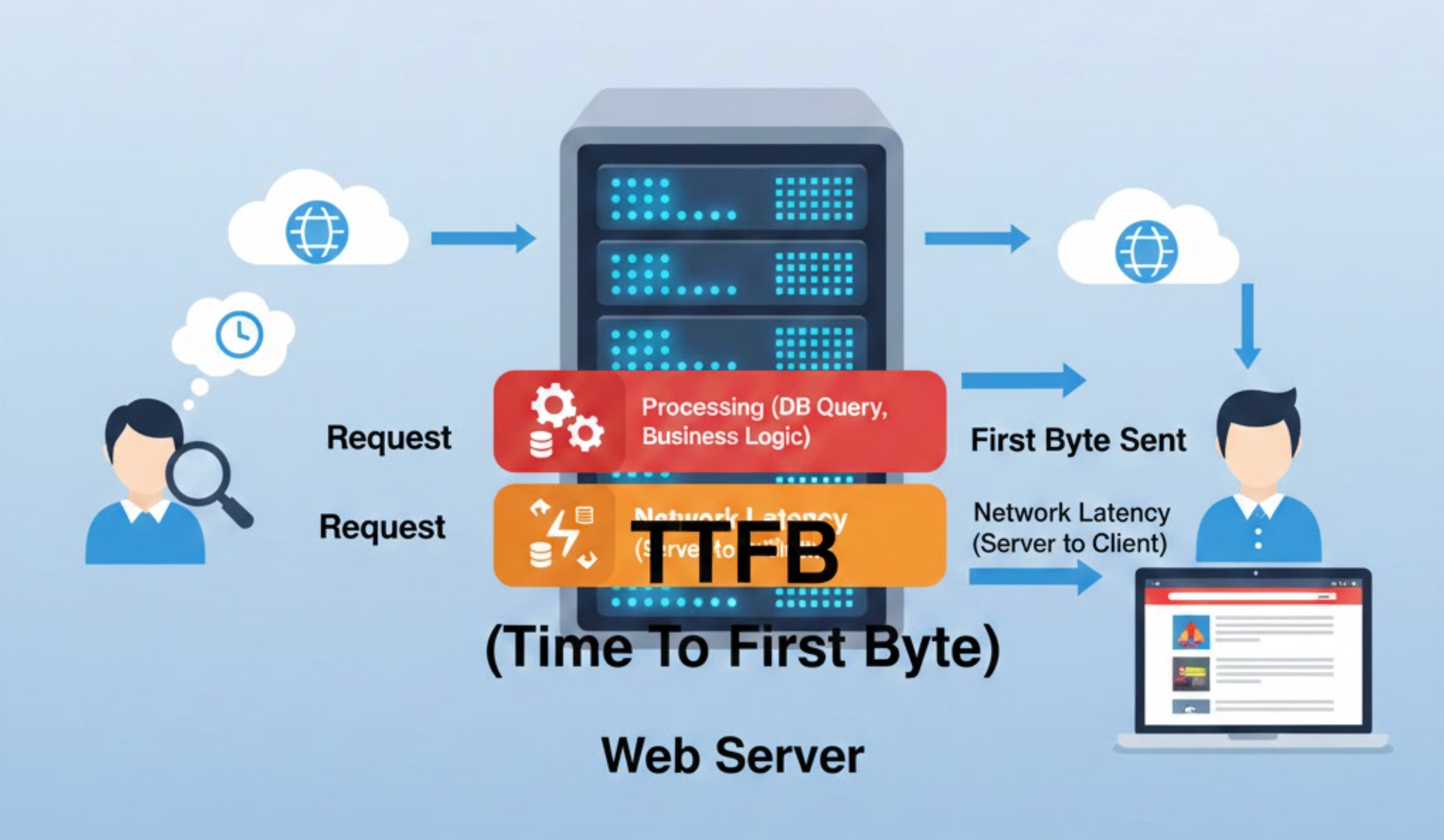
To improve your store’s performance, it’s essential to first understand what server response time actually measures and why it matters so much.
TTFB (Time to First Byte) is the time it takes for your server to start sending data back to a user’s browser. It includes several steps:
If any of these layers are slow, hosting, database, plugins, theme, or server configuration, your TTFB increases.
For dynamic websites like WooCommerce, where product filtering, cart logic, sessions, and user data must be processed on every visit, server response time matters even more. A delay in backend processing affects product loading, add-to-cart performance, checkout responsiveness, cart handling, and dynamic pricing. Understanding these bottlenecks is the first step toward meaningful improvements.
Before optimizing, you need a clear baseline. Measuring TTFB helps you identify what’s slowing your site and track improvements later. Below are the best ways to check your WooCommerce server response time.
By gathering these measurements first, you’ll have a roadmap showing whether slow TTFB is caused by hosting, plugins, theme issues, or database inefficiencies.
Once you understand your baseline, it’s time to take action. The most effective improvements target the server environment, database, plugins, theme, and caching systems. Here’s a detailed breakdown:

The foundation of a fast WooCommerce store is solid hosting. No plugin or optimization can compensate for underpowered servers. If you’re running on cheap shared hosting, the server often becomes overwhelmed during traffic spikes, causing slow queries, long waiting times, and high TTFB.
When evaluating hosting for WooCommerce, pay attention to the features that directly affect backend processing speed:
Upgrading to a properly optimized hosting plan often reduces TTFB from 1–2 seconds to under 200ms instantly, creating a solid foundation for all further optimizations.
Even with good hosting, WooCommerce still executes many queries and PHP tasks on each request. This is where server-level caching becomes invaluable. Proper caching allows the server to respond quickly by reducing repeated computation.
Before listing the caching methods, it’s important to note that each one targets a different layer of server processing:
Adding these caching layers allows WooCommerce to focus resources on dynamic requests while serving static content quickly, dramatically reducing TTFB.
As your store grows, your database accumulates old sessions, expired transients, abandoned carts, and leftover plugin tables. This bloat slows queries and increases server response time.
To tackle this, you need a systematic cleanup approach that removes unnecessary data and optimizes query efficiency:
A cleaner database leads to faster query execution, lower server load, and consistently reduced TTFB across your WooCommerce store.
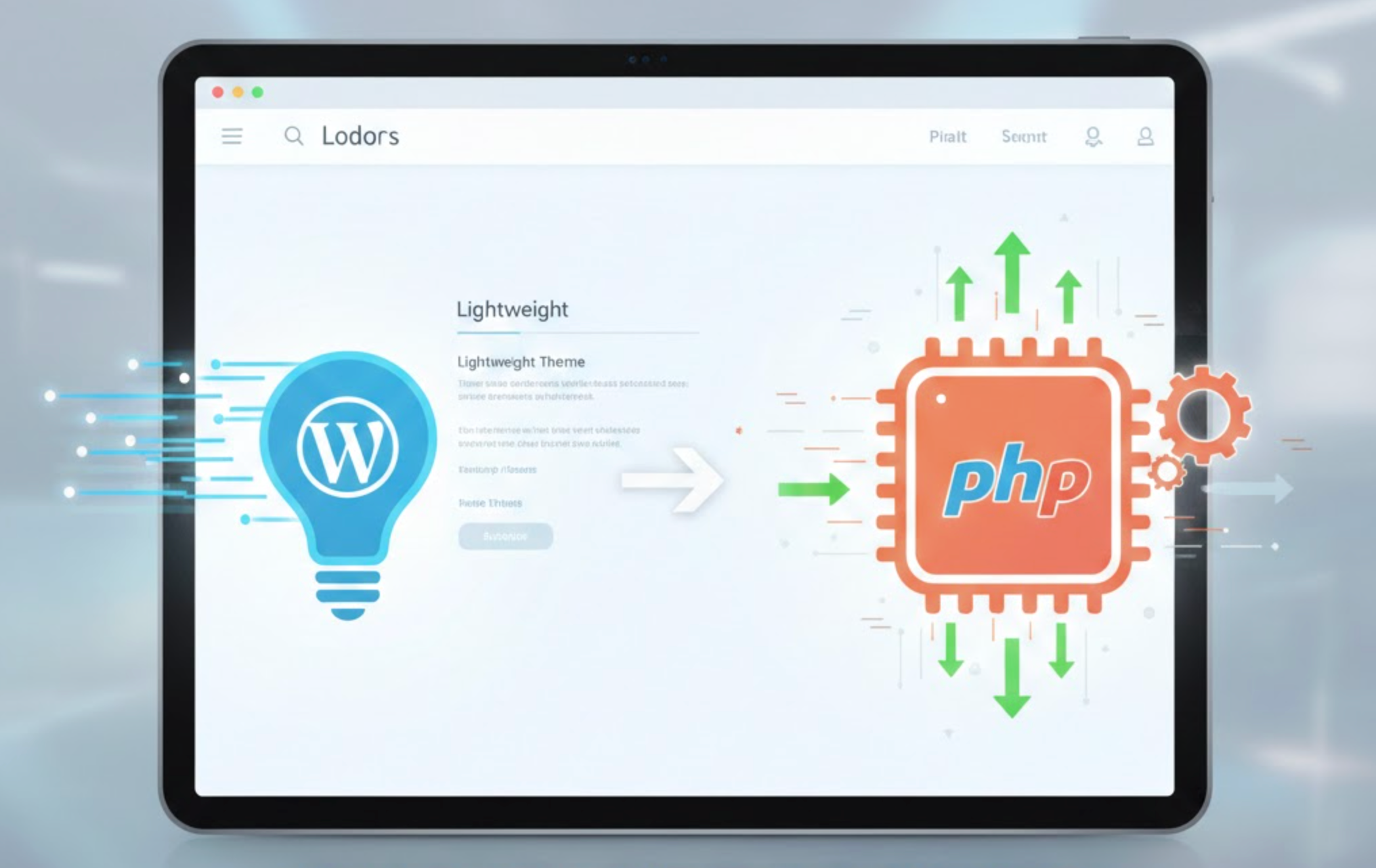
Your WooCommerce theme directly affects how WooCommerce executes backend logic. Heavy themes with many scripts, templates, and dynamic features increase PHP execution time and database queries.
Before diving into specific themes, consider these criteria for a performance-focused WooCommerce theme:
Switching to a lightweight, optimized theme reduces backend processing time and prevents unnecessary slowdowns caused by bloated template files and hooks.
Plugins are often the silent performance killers of WooCommerce stores. Even a single poorly coded plugin can generate long database queries, heavy API calls, and repeated background processes.
Before you look at plugins to remove, consider how these types typically affect server performance:
To fix plugin-related slowdowns, you can:
Cleaning up slow plugins can reduce backend load significantly and improve server response time.
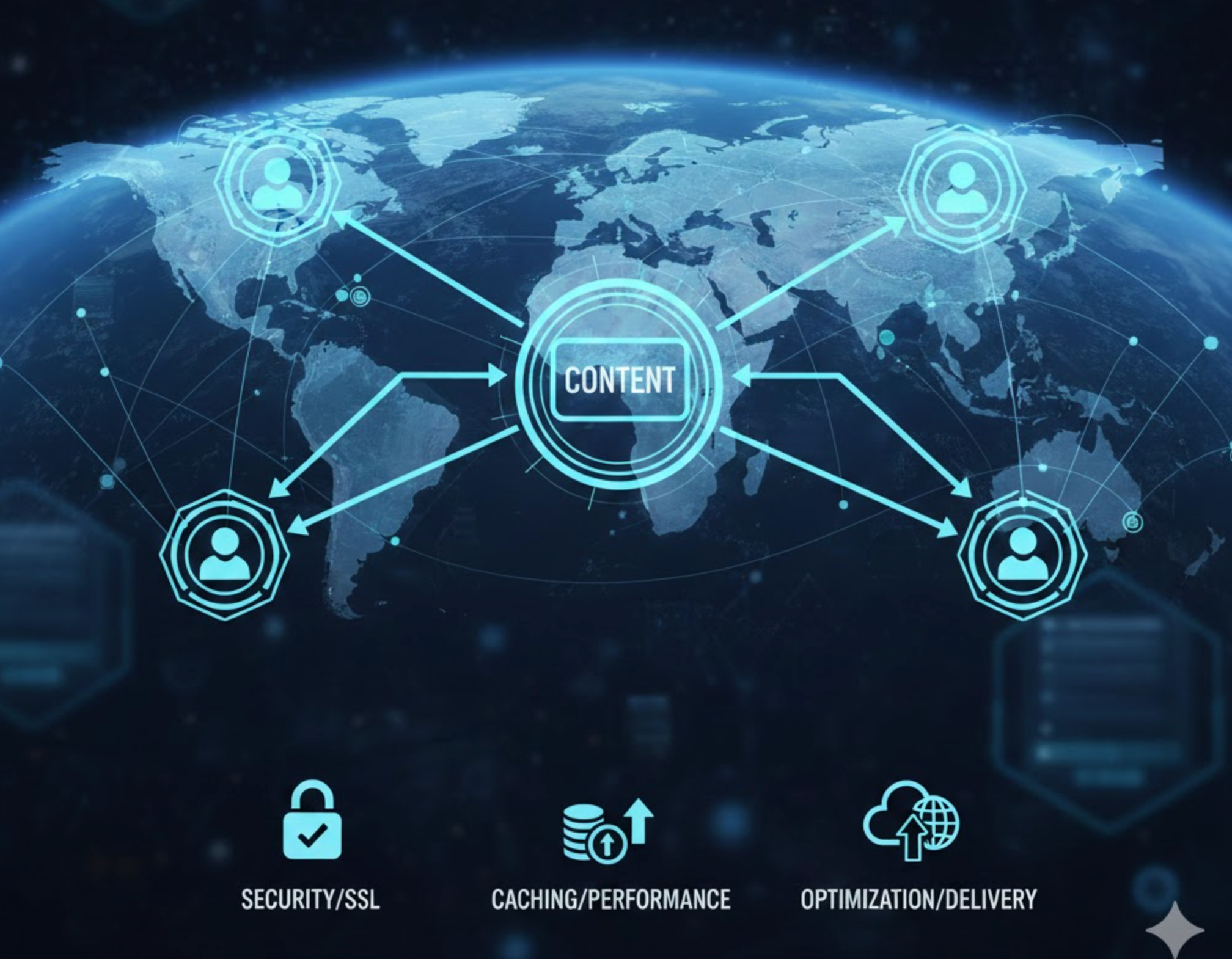
A Content Delivery Network (CDN) improves load times for global visitors, but it doesn’t inherently reduce TTFB for dynamic WooCommerce pages. Understanding this distinction is key.
Before choosing a CDN, consider what it will improve:
Remember, CDNs don’t solve PHP or database bottlenecks. For dynamic WooCommerce pages, use CDNs with full-page caching like Cloudflare APO or QUIC.cloud to see real performance improvements.
The PHP version and the number of workers available for concurrent requests have a direct impact on WooCommerce performance. Modern PHP versions execute code faster, and sufficient PHP workers prevent request queuing.
Key considerations before adjustments:
These upgrades reduce backend execution time and allow WooCommerce to respond faster under load.
WordPress Heartbeat API sends repeated AJAX requests for autosaving and syncing. On WooCommerce stores, frequent heartbeats increase server load unnecessarily.
Before adjusting Heartbeat, consider:
Using a plugin like Heartbeat Control allows you to limit or disable Heartbeat, freeing server resources for WooCommerce requests and improving TTFB.
Full-page caching can significantly reduce TTFB for static pages, but dynamic pages like cart, checkout, and account pages should remain uncached.
Before implementing caching, identify which pages benefit:
Top caching plugins for WooCommerce include LiteSpeed Cache, WP Rocket, FlyingPress, Cloudflare APO, and NitroPack. Proper configuration ensures that cached pages load instantly while preserving dynamic functionality.
WooCommerce performs many tasks in the background, such as sending emails, syncing inventory, generating thumbnails, and running CRON jobs. These operations, if handled during peak traffic, can increase TTFB significantly.
Before offloading, evaluate which tasks are resource-intensive:
Offloading these tasks to external services or background queues frees server resources, allowing WooCommerce to respond faster to customer actions.
Improving WooCommerce server response time requires a combination of strategic optimizations. From upgrading hosting and enabling server-level caching to cleaning databases, reducing plugin bloat, and offloading background tasks, every step contributes to faster performance.
Focusing on backend efficiency ensures that your store not only loads faster but also handles more visitors, reduces cart abandonment, and improves SEO rankings. By taking these steps, you create a WooCommerce store that is robust, scalable, and capable of providing a smooth, high-converting user experience.