How To Solve WooCommerce Plugin Conflicts Slowing Down Your Store?
Technology
Nov 25, 2025
8M
Alice Pham
Running a WooCommerce store efficiently requires more than just choosing the right theme and products, it also demands that your plugins work seamlessly together. While plugins can enhance your store’s functionality in countless ways, having too many plugins or poorly coded ones can lead to conflicts that slow down your site, break features, or even cause complete crashes. These conflicts not only frustrate customers but also reduce conversions and harm your brand’s reputation.
Understanding how to identify and resolve these plugin conflicts is crucial for maintaining a fast, reliable eCommerce experience that keeps shoppers coming back.
Why WooCommerce Plugin Conflicts Happen?
WooCommerce plugin conflicts occur when two or more plugins attempt to modify the same functionality or load incompatible scripts and styles. These conflicts often happen silently, making it difficult to pinpoint the exact cause. Some common triggers include:
Overlapping functionality: When multiple plugins try to manage the same feature, such as multiple SEO tools, caching plugins, or product filters, they can interfere with each other and cause errors.
Outdated plugins: Plugins that haven’t been updated in a long time may not be compatible with the latest WooCommerce or WordPress versions. This mismatch can create performance issues or even fatal errors.
Poor coding practices: Some plugins enqueue scripts and styles globally instead of only on the pages where they’re needed, increasing load times and the likelihood of conflicts.
Theme conflicts: Even a well-coded plugin can clash with your theme, especially if the theme includes custom templates or page builder integrations that modify WooCommerce features.
The result of these conflicts is often a slow-loading store, broken functionality, and a poor user experience, all of which can lead to lost sales.
Signs Your WooCommerce Store Has Plugin Conflicts
Before resolving conflicts, you first need to recognize the symptoms. Common warning signs include:
Pages, especially product or checkout pages, load unusually slow.
Features or buttons that suddenly stop working without explanation.
JavaScript errors appearing in the browser console, indicating script clashes.
Unexpected site crashes when activating, updating, or deactivating plugins.
Inconsistent design or layout issues caused by CSS conflicts.
Identifying these symptoms early helps you address conflicts before they affect customer experience or revenue.
How to Solve Plugin Conflicts: Step-by-step
1. Backup Your Store
Always create a full backup of your website, including your database, before making any changes. This ensures you can restore your store if something goes wrong during troubleshooting. Plugins like UpdraftPlus or All-in-One WP Migration make backing up your site fast and easy, protecting your store and your peace of mind.
2. Identify the Conflicting Plugin
Finding the plugin causing issues requires systematic testing:
Deactivate all plugins except WooCommerce: If your site’s speed improves, you’ve confirmed a plugin is causing the slowdown or error.
Reactivate plugins one by one: Check site performance after activating each plugin. This method helps isolate the specific plugin or combination of plugins responsible for the conflict.
Use a staging site: Testing on a staging environment prevents disruptions to your live store and allows you to experiment safely.
3. Update Everything
Keeping WooCommerce, WordPress, your theme, and all plugins up to date is essential. Developers often release updates to fix bugs, improve compatibility, and optimize performance. Outdated software is a common source of plugin conflicts, so maintaining the latest versions reduces issues significantly.
4. Optimize Plugin Load
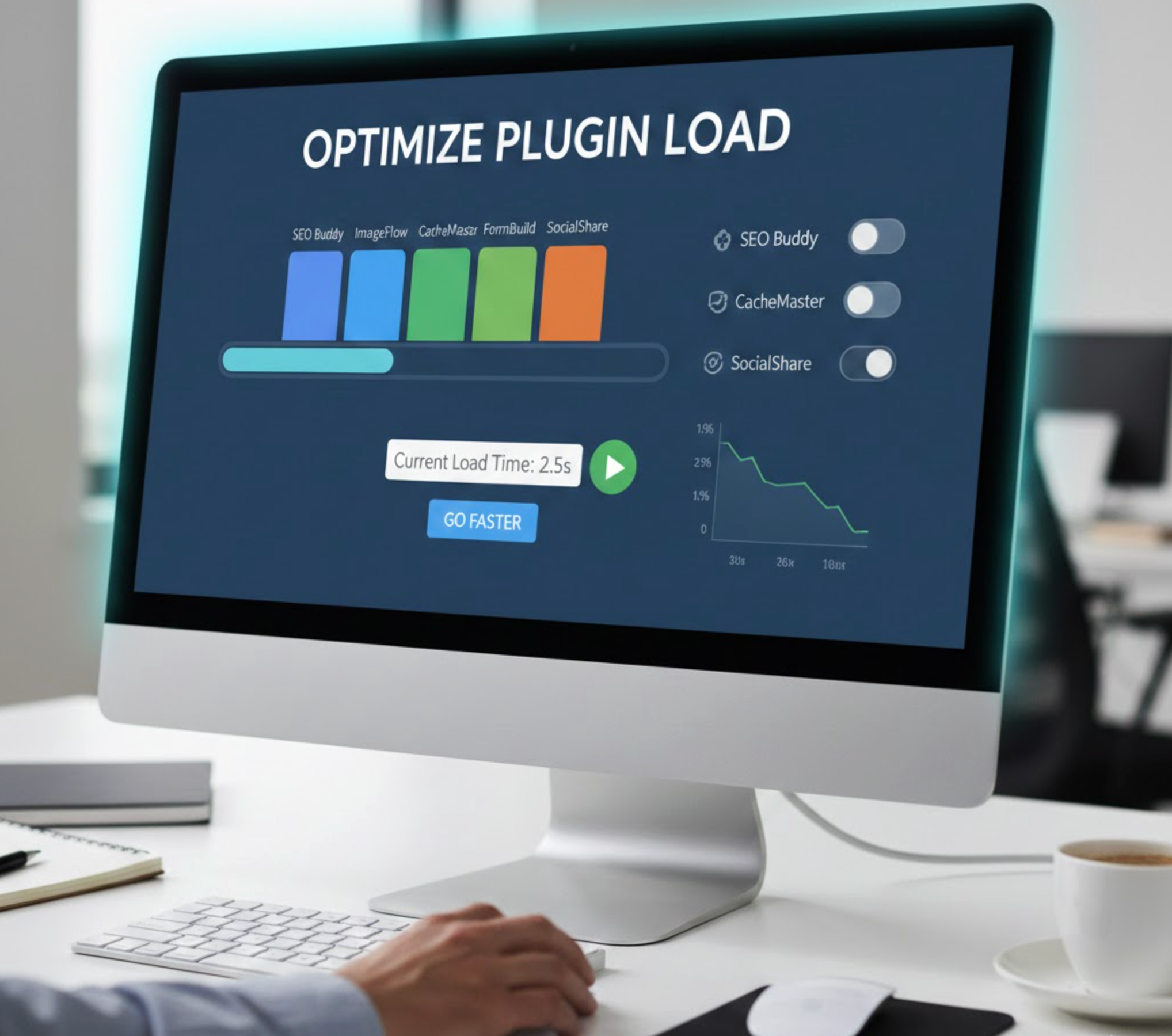
Even plugins that don’t directly conflict can slow your store if poorly optimized:
Remove unused plugins: Deactivate or delete plugins you no longer use. Each active plugin adds code and potential points of failure.
Use performance-friendly alternatives: Choose plugins known for lightweight code and high compatibility.
Load plugins selectively: Advanced optimization tools allow you to load certain scripts only on pages where they’re needed, reducing unnecessary resource consumption.
5. Check for JavaScript and CSS Conflicts
Many conflicts occur at the script level:
Open your browser console to spot JavaScript errors.
Use performance monitoring tools like Query Monitor, GTmetrix, or Pingdom to identify scripts slowing down your pages.
Adjust or dequeue conflicting scripts if you have coding knowledge, or consult a developer to prevent breaking features.
6. Test Caching and Optimization Plugins
Caching and performance plugins can sometimes create conflicts with other plugins:
Clear caches after updating plugins to ensure old scripts aren’t interfering.
Temporarily disable minification or combination features to check if they’re causing issues.
Ensure only one caching or optimization plugin is active, as multiple caching tools can clash and produce unexpected behavior.
7. Contact Plugin Support
If a conflict persists despite troubleshooting, contact the plugin developers. Provide them with:
Your WordPress and WooCommerce versions
Other active plugins and the theme you’re using
Steps to reproduce the issue
Reputable plugin developers often provide fixes or patches for known conflicts, saving you time and preventing further slowdowns.
Preventing Future Plugin Conflicts
The best way to manage plugin conflicts is to prevent them before they occur. By taking proactive steps, you can maintain a faster, more stable WooCommerce store and reduce the risk of downtime or lost sales. Carefully planning your plugin usage, testing updates, and monitoring performance regularly ensures your store operates efficiently and delivers a seamless shopping experience for customers.
Plan your plugin usage carefully: Only install plugins that add essential value. Avoid multiple plugins with overlapping features, as these are the most common source of conflicts.
Test updates on a staging site: Always test updates to WooCommerce, WordPress, or plugins on a staging environment first. This helps you catch conflicts without affecting your live store or customers.
Monitor performance regularly: Track your store’s speed and functionality using tools like GTmetrix, Pingdom, or New Relic. Early detection of slowdowns or errors can prevent conflicts from escalating.
Keep plugins and themes up to date: Developers release updates to fix bugs, improve compatibility, and optimize performance. Running the latest versions reduces the likelihood of plugin conflicts.
Limit the number of plugins: Each plugin adds additional code and potential points of failure. Focus on high-quality, well-coded plugins, and remove any that are unnecessary or redundant.
Document your plugin setup: Maintain a record of active plugins, their versions, and purposes. This makes troubleshooting easier and ensures any new plugin additions won’t overlap with existing functionality.
Conclusion
WooCommerce plugin conflicts can be frustrating and disruptive, but they are manageable with a systematic approach. By identifying problematic plugins, updating everything, optimizing load, and testing carefully, you can maintain a fast, smooth, and reliable store. Proactively preventing conflicts by limiting plugin use, testing updates, and monitoring performance ensures your WooCommerce store runs efficiently while providing customers with a seamless shopping experience.
Remember, fewer high-quality plugins often outperform a long list of unnecessary ones, allowing your store to achieve maximum conversions while minimizing downtime and frustration.