New to Shopify? Free trial, then $1/month for your first 3 months. Start free trial →
 Where is your store?
Ryviu works with both – pick yours to continue.








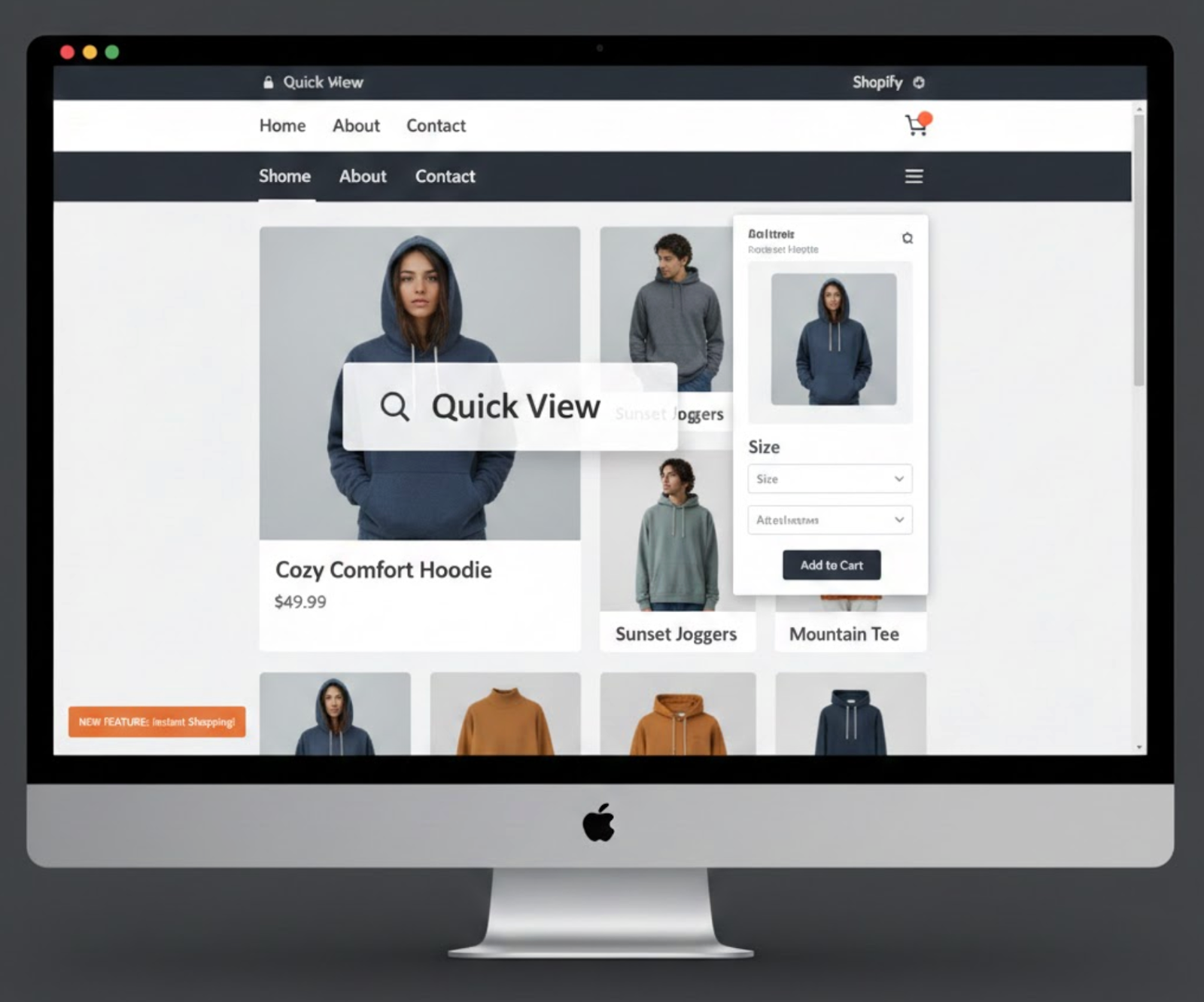
Adding a Quick View option to your Shopify store does not always require installing third-party apps or writing custom code. Many modern Shopify themes already include a built-in Quick View or Quick Shop feature that can be enabled directly from the theme editor. When used correctly, this native solution offers a clean, lightweight, and reliable way to improve product browsing without affecting store performance.
In this guide, we’ll walk through the entire process step by step, from checking whether your theme supports Quick View to enabling and optimizing it for the best user experience. Each step is explained clearly, with smooth transitions, so you can follow along confidently even if you’re new to Shopify.
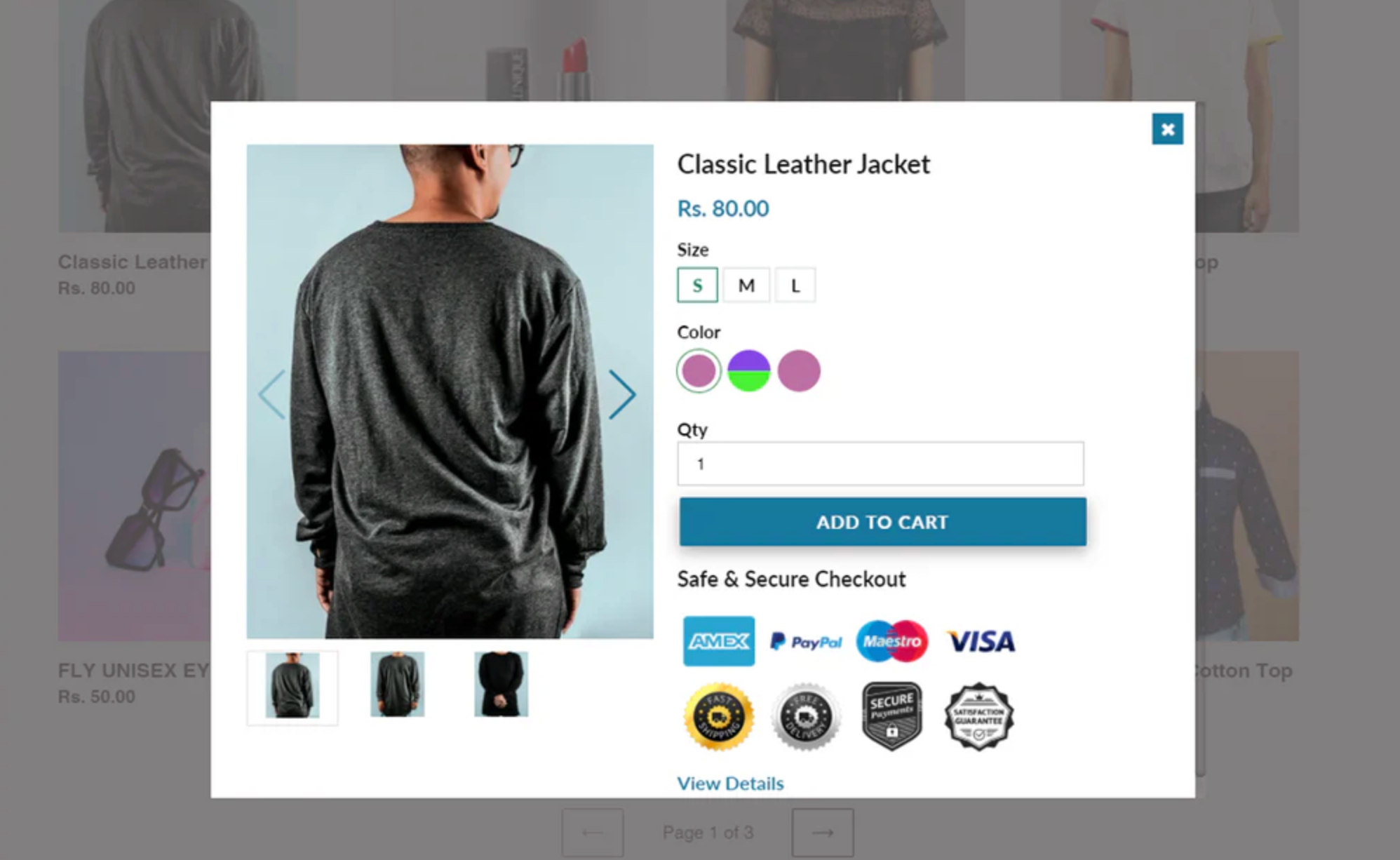
Quick View is a built-in or theme-enabled feature in Shopify that allows shoppers to preview key product details through a pop-up or modal window directly from a product listing. When customers click the “Quick View” button on a product card, the product information appears instantly on the same page, rather than opening a separate product page.
By keeping shoppers in their current browsing context, Quick View removes unnecessary interruptions and helps maintain browsing momentum. It gives customers just enough information to evaluate a product quickly while still offering the option to visit the full product page if they want deeper details.
A standard Quick View modal usually displays:
This feature is particularly valuable for stores with large or visually driven catalogs, where customers often compare multiple products before deciding which one to purchase.
Adding a Quick View option goes beyond improving visual design, it directly enhances how customers interact with your store and make purchasing decisions. As online shoppers become more impatient and efficiency-focused, reducing friction during product exploration is essential.
One of the biggest advantages of Quick View is the faster browsing experience it creates. Customers can review multiple products without repeatedly loading new pages, which makes the shopping process feel smoother and more intuitive.
In addition, Quick View helps reduce page load dependency. Because fewer full product pages are opened, the store feels faster and more responsive, even on slower networks or mobile devices.
Quick View also encourages higher engagement. When shoppers can access product details instantly, they are more likely to explore additional items, increasing both time spent on site and product interaction.
From a conversion standpoint, Quick View can lower purchasing friction. Providing immediate access to pricing, variants, and the Add to Cart button helps customers move from interest to action with fewer steps.
Finally, when designed correctly, Quick View significantly improves the mobile shopping experience. A well-optimized modal allows mobile users to browse and evaluate products comfortably without constant page transitions, which is critical for modern Shopify stores.
Adding a Quick View option to your Shopify store can enhance shopping convenience by letting customers preview product details right from the collection page. If your theme supports this feature natively, like many modern premium themes do, you can activate it quickly without any apps or custom code. Below is a clear, sequential guide to help you enable and customize Quick View using your Shopify theme.
First, log in to your Shopify admin dashboard and navigate to your active theme settings. To do this:
This opens the Shopify theme editor, where you control how your store looks and behaves.
Once you're inside the theme editor interface:
By enabling this setting, a small Quick View icon (often a “plus” sign or magnifying glass) will now appear on each product card when customers hover over them or view them on collection pages. This icon signals to users that they can quickly preview the product without leaving their current page.
Enabling Quick View makes the feature visible, but the next step lets you control what customers see inside the modal preview. Most Shopify themes allow you to customize the layout and visible information of the Quick View popup by editing the product modal template.
To customize this:
This step lets you tailor the Quick View content so that it aligns with your brand's visual design and shopping experience goals. For example, you can choose how media displays, whether variant labels appear, and how pricing or dynamic checkout options are shown, all within the popup itself.
After saving your changes, it’s important to test how Quick View works from the customer’s perspective.
Testing ensures that everything displays properly across devices and aligns with your usability expectations.
Using your theme’s built-in Quick View feature offers several advantages:
By following the steps above, you enable a smoother, faster shopping experience that can help customers make quicker buying decisions and reduce bounce rates. If you run into any issues or your theme doesn’t show these options, check your theme’s documentation or contact the theme developer for support.
Adding a Quick View option using Shopify’s built-in theme features is one of the most efficient ways to improve product browsing without increasing technical complexity. By enabling and configuring this feature step by step, you can offer customers a faster, smoother shopping experience while keeping your store lightweight and easy to maintain.
When implemented thoughtfully, Quick View helps shoppers explore more products, make quicker decisions, and move closer to purchase, all while staying within Shopify’s native ecosystem.