New to Shopify? Free trial, then $1/month for your first 3 months. Start free trial →
 Where is your store?
Ryviu works with both – pick yours to continue.









Broken links are a silent killer for Shopify stores, and they often go unnoticed until sales start dipping or SEO rankings suddenly drop. Because each broken link disrupts the customer journey, lowers trust, and wastes hard-earned traffic, fixing them becomes one of the fastest ways to recover lost revenue. Fortunately, Shopify provides several built-in reports that help you find these issues based on real user behavior, making it easier to focus on problems that truly matter.
This guide explains not only which reports to use but also how to analyze them, how to prioritize fixes, and how to combine Shopify data with technical SEO workflows. With smoother transitions throughout, you’ll find the entire process more intuitive and easier to follow.
Before jumping into the reports themselves, it’s important to understand why broken links have such a big impact. Even one broken link can instantly interrupt the buyer’s flow, forcing customers away from the product they intended to view. Over time, this leads to increased bounce rates, shorter sessions, and missed conversions. Because eCommerce relies heavily on user flow and navigation clarity, these disruptions accumulate quickly.
From an SEO perspective, broken links weaken the overall structure of your website. Search engines treat broken URLs as a sign of outdated or poorly maintained content, which can reduce your domain authority and prevent important pages from ranking well. And because search bots waste crawl budgets on missing URLs, your newest or most important product pages may not get indexed efficiently.
All of this adds up to a simple truth: the longer broken links remain unfixed, the more revenue you lose. With that in mind, let’s move into the first, and most revealing, report Shopify provides.
The most direct way to detect broken links is by checking where customers land on a 404 page. Shopify automatically records these events, and reviewing them regularly allows you to see which broken URLs users are actively trying to access. This makes it a highly actionable report because it focuses on real-world customer behavior rather than hypothetical issues.
You can access the essential 404 data by navigating to:
Although it isn't labeled as a “404 report,” this filtered view provides all the insights you need.
The most valuable aspect of this report is that it helps you prioritize broken links based on actual traffic. Instead of fixing every tiny issue across your store, you can focus on the broken URLs that customers already attempted to visit. This creates a more efficient workflow and ensures you’re addressing the highest-impact problems first.
As you review the list, look for broken URLs that:
These patterns often indicate common causes of broken links throughout Shopify stores.
Once you identify problematic URLs, it becomes easier to take the next step. You can:
Because this report shows real user behavior, it’s best to check it regularly, ideally once a month or more often if your store publishes new content frequently.
To expand your visibility even further, let’s explore another important report: external traffic sources.
After fixing internal issues, the next step is checking whether external websites are sending traffic to broken URLs. This is crucial because external links, especially from blogs or review sites, often carry significant SEO value. If those links point to missing pages, you’re losing both authority and potential customers.
Go to: Analytics → Reports → Sessions by Referrer
Once there, look closely at referral sessions that lead to 404 pages or landing pages that no longer exist.
Fixing broken external links can have immediate benefits because:
Plus, because these links originate off-site, Shopify will never warn you unless you check the report manually.
Look for referral traffic that lands on:
These referring sources often don’t update their content, so broken links can persist for months or years if you don’t fix them.
Once a broken external link is identified:
With the external side handled, the next logical area to examine is how broken links affect conversions.
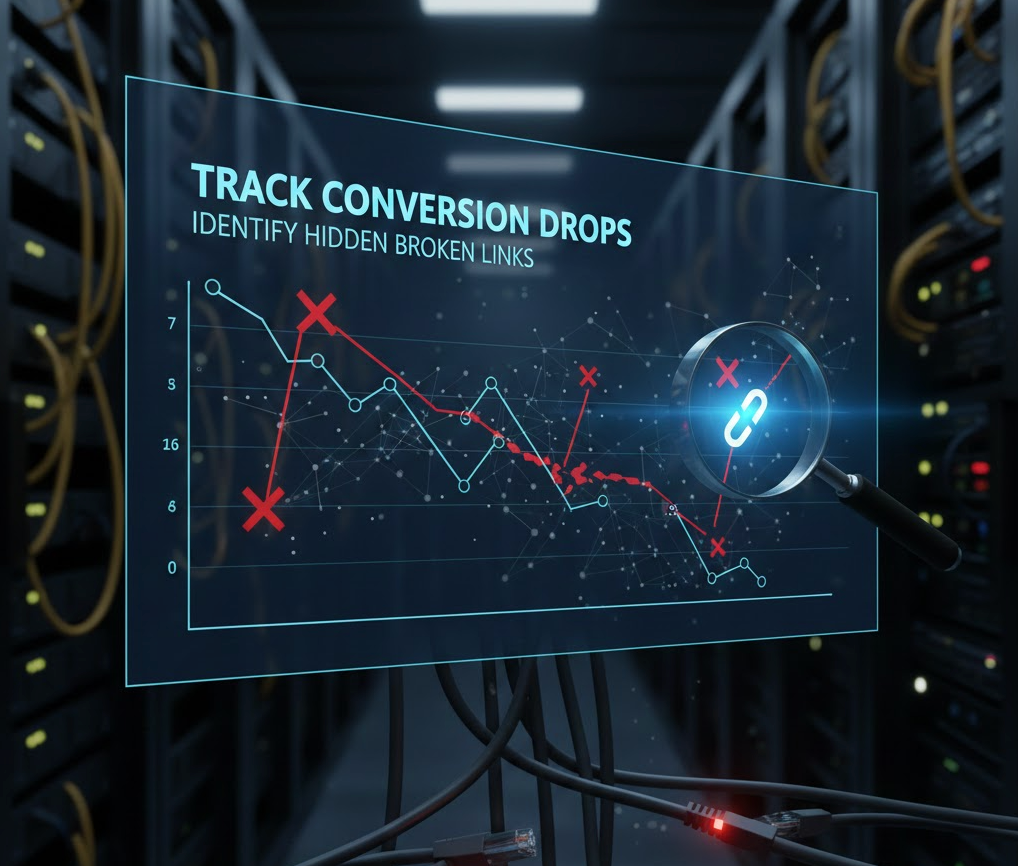
Sometimes broken links don’t lead to 404s, they simply lead nowhere, display a blank section, or create a stuck user flow. These “soft broken links” won’t show up in the 404 report but can damage performance even more. This is why monitoring your conversion data is essential for uncovering hidden issues.
Open: Analytics → Dashboard → Online Store Conversion Rate
Compare current data with previous weeks or months to detect unusual drops.
A sudden decline in conversions often indicates that something deeper is wrong. This can happen when:
Because these errors don’t always generate a 404 page, the conversion report becomes your indirect warning system.
If conversions take a hit while traffic levels stay stable, take it as a clear sign to check:
These sections frequently hide broken internal links that disrupt the customer journey without generating visible errors.
With conversion issues addressed, it’s time to examine one of the most revealing reports Shopify offers.
Your most frequently visited landing pages represent major touchpoints for users. If these key pages contain broken internal links, the impact on sales can be massive. For this reason, reviewing the landing pages report gives you a strategic advantage.
Go to: Analytics → Reports → Sessions by Landing Page
This report shows which pages attract the most traffic and therefore have the biggest influence on purchase decisions.
High-traffic pages often contain the most internal links — sometimes dozens. A single broken link inside a popular blog post or collection page can cause a significant drop in engagement. This makes the landing page report essential for discovering where to focus manual or automated link audits.
Focus especially on landing pages that:
When a page performs worse without an obvious reason, broken internal links are often the culprit.
Start with:
Fixing issues on these pages creates immediate improvements because they influence large segments of your audience.
As we transition into more comprehensive detection methods, let’s explore how crawling tools complement Shopify’s reports.
While Shopify reports reveal broken links customers actually encounter, crawlers help you find broken links customers haven’t reached yet. By combining both, you get the most accurate and complete picture of your store’s URL health.
Shopify shows you the current real-world issues.
Crawlers show you upcoming or hidden issues.
Together, they help you:
After identifying current and future issues, you also need to prevent new broken links from appearing, especially from product deletions.
Many Shopify stores unintentionally create broken links by deleting products. Because blogs, menus, apps, social posts, and ads often link to those product URLs, deleting a product can cause dozens of broken links overnight.
Go to: Products → Inventory → Product Status
Watch for:
If a product is deleted:
To avoid all of that, consider:
With prevention covered, let’s move on to the action that ties everything together: redirects.
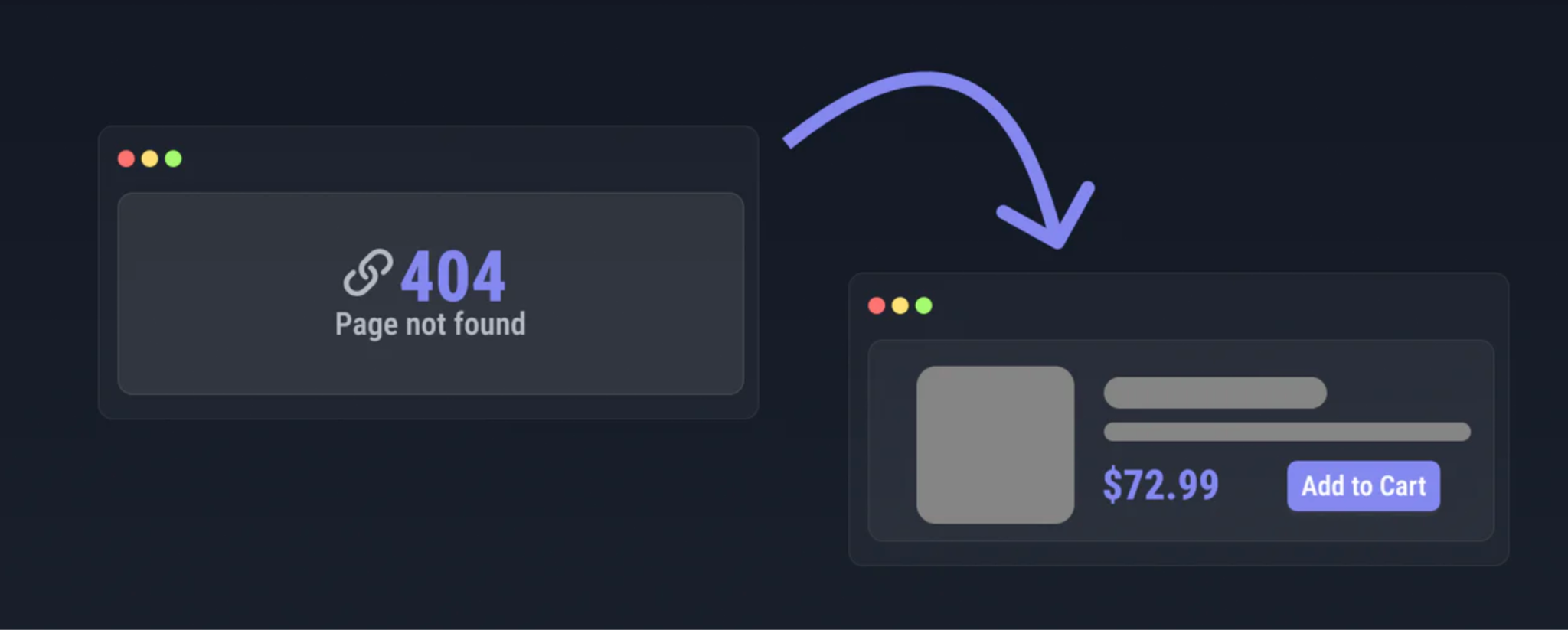
Redirects are the quickest and most reliable way to fix broken URLs. Shopify’s built-in redirect tool is simple, effective, and vital for maintaining both SEO and user experience.
Redirects ensure customers reach relevant pages even after old URLs become obsolete.
To maintain this system automatically, let’s look at the final piece.
As your store grows, updates become more frequent. This makes manual checking unrealistic. Automation ensures you catch broken links immediately, before they impact sales.
Shopify apps and external SEO tools can:
Automation transforms broken link management from a reactive task into a proactive system that protects your store year-round.
Finding and fixing broken links doesn’t need to be overwhelming. Shopify’s built-in reports give you the perfect starting point by focusing on issues that directly affect real users and active traffic. With strong transitions between each step, the workflow becomes even clearer: identify, prioritize, analyze, fix, and automate.